Aug 31, 2011

function to skip weekends from add hours calculation

C# function to skip weekends from datetime.addhours calculation
///
/// function to skip weekends from add hours calculation
///
///
///
private DateTime CalculatebusinessDaysperiod(int numberOfhoursToAdd)
{
DateTime finalDate = new DateTime();
for (int i = 0; i < numberOfhoursToAdd; i++)
{
finalDate = finalDate.AddHours(1);
while (finalDate.DayOfWeek == DayOfWeek.Saturday || finalDate.DayOfWeek == DayOfWeek.Sunday)
{
finalDate = finalDate.AddHours(1);
}
}
return finalDate;
}

Aug 17, 2011

Building Custom WordPress Theme

This is the Chapter II of the Complete WordPress Theme Guide series. This chapter will show you how to build a custom WordPress theme. Although the Codex site provides very good documentations on how to create a theme, but I find it too complicated for a beginner. In this tutorial, I will explain the basics of how WordPress theme works and show you how to convert a static HTML template into a theme. No PHP skill is required, but you need Photoshop and CSS skills to create your own design.

1. The Blog Frontend

Before you start, let's take a look at the WordPress default theme and see how it is structured. Take note of the elements (header, post title, search form, navigation, footer, etc.).

default homepage Default Frontpage (index.php)

default homepage Default Single (single.php)

2. Photoshop Mockups

Based on the information gathered from the default theme, design a Photoshop mockup of your blog. Here I'm using GlossyBlue, one of my free WordPress themes, as an example. Download the demo.zip to see the Photoshop file.

default homepage

3. HTML + CSS

After the PSD design is done, create a static HTML+CSS template of each page. You can use my GlossyBlue HTML files in the demo.zip to follow this tutorial. Extract the zip and take a look at the index.html, single.html, and page.html. Later in the tutorial, I will use these HTML files and convert them into a theme.

default homepage

Why Create a Static HTML File First?

Mainly because it will make the development process a lot easier. I usually create a HTML file for every template that I need, test it across all browsers, validate both HTML and CSS markups, then all I have to do is cut & paste the WordPress code. By doing so, I don't have to worry about HTML or CSS bugs during my theme making process.

4. How WordPress Theme Works

If you go the default theme folder (wp-content/themes/default), you should see many PHP files (called template file) and one style.css file. When you are viewing the front page, WordPress actually uses several template files to generate the page (index.php <<header.php, sidebar.php, and footer.php).

how theme works

For more details, check out Site Architecture and Template Hierarchy at Codex.

5. Duplicate The Template Files

Copy the GlossyBlue HTML folder into the wp-content/themes folder. Then, go to thedefault theme folder, copy the comments.php and searchform.php file to theglossyblue folder.

copy files

6. Style.css

Go to the WordPress default theme folder, open the style.css file. Copy the commented code at the top and paste it to the GlossyBlue style.css file. Change the theme name and the author information as you desire.

theme name and author's information

7. Splitting The Files

Now you need to understand where to split the file into several files: header.php,sidebar.php, and footer.php. The image below shows a simplified version of my indexfile and how the markups should split.

splitting files

8. Header.php

Open the index.html file. Cut from the top to where the ends, paste it in a new PHP file, and save the file as header.php.

header code

Go to the default theme folder, open the header.php. Copy and replace the tags where it requires PHP code (Template Tag): </code>, <code style="margin-top: 0px; margin-right: 0px; margin-bottom: 0px; margin-left: 0px; padding-top: 0px; padding-right: 0px; padding-bottom: 0px; padding-left: 0px; font-family: Consolata, monospace; font-size: 15px; color: rgb(114, 0, 138); word-spacing: -0.25em; "><link></code> stylesheet, <code style="margin-top: 0px; margin-right: 0px; margin-bottom: 0px; margin-left: 0px; padding-top: 0px; padding-right: 0px; padding-bottom: 0px; padding-left: 0px; font-family: Consolata, monospace; font-size: 15px; color: rgb(114, 0, 138); word-spacing: -0.25em; "><h1>,</code> and <code style="margin-top: 0px; margin-right: 0px; margin-bottom: 0px; margin-left: 0px; padding-top: 0px; padding-right: 0px; padding-bottom: 0px; padding-left: 0px; font-family: Consolata, monospace; font-size: 15px; color: rgb(114, 0, 138); word-spacing: -0.25em; "><div class=description></code>.</p><p class="image" style="margin-top: 0px; margin-right: 0px; margin-bottom: 2.5em; margin-left: 0px; padding-top: 0px; padding-right: 0px; padding-bottom: 0px; padding-left: 0px; "><a href="http://www.webdesignerwall.com/wp-content/uploads/2008/11/header-zoom.gif" class="thickbox" style="margin-top: 0px; margin-right: 0px; margin-bottom: 0px; margin-left: 0px; padding-top: 0px; padding-right: 0px; padding-bottom: 0px; padding-left: 0px; text-decoration: none; outline-style: none; outline-width: initial; outline-color: initial; color: rgb(131, 66, 2); background-color: transparent; border-bottom-style: none; border-bottom-width: initial; border-bottom-color: initial; "><img src="http://www.webdesignerwall.com/wp-content/uploads/2008/11/header.gif" alt="replace code" style="margin-top: 0px; margin-right: 0px; margin-bottom: 0px; margin-left: 0px; padding-top: 5px; padding-right: 5px; padding-bottom: 5px; padding-left: 5px; border-top-width: 0px; border-right-width: 0px; border-bottom-width: 1px; border-left-width: 0px; border-style: initial; border-color: initial; max-width: 98%; height: auto; background-image: initial; background-attachment: initial; background-origin: initial; background-clip: initial; background-color: rgb(255, 255, 255); border-bottom-style: solid; border-bottom-color: rgb(196, 194, 183); background-position: initial initial; background-repeat: initial initial; "></a></p><h4 style="margin-top: 1em; margin-right: 0px; margin-bottom: 0.2em; margin-left: 0px; padding-top: 0px; padding-right: 0px; padding-bottom: 0px; padding-left: 0px; font-family: Arial, Helvetica, sans-serif; line-height: normal; font-weight: bold; color: rgb(69, 54, 48); font: italic normal normal 155%/normal Baskerville, 'Times New Roman', Times, serif; ">Navigation Menu (wp_list_pages)</h4><p style="margin-top: 0px; margin-right: 0px; margin-bottom: 1.6em; margin-left: 0px; padding-top: 0px; padding-right: 0px; padding-bottom: 0px; padding-left: 0px; ">Replace the <code style="margin-top: 0px; margin-right: 0px; margin-bottom: 0px; margin-left: 0px; padding-top: 0px; padding-right: 0px; padding-bottom: 0px; padding-left: 0px; font-family: Consolata, monospace; font-size: 15px; color: rgb(114, 0, 138); word-spacing: -0.25em; "><li></code> tags in the <code style="margin-top: 0px; margin-right: 0px; margin-bottom: 0px; margin-left: 0px; padding-top: 0px; padding-right: 0px; padding-bottom: 0px; padding-left: 0px; font-family: Consolata, monospace; font-size: 15px; color: rgb(114, 0, 138); word-spacing: -0.25em; "><ul id=nav></code> with <code style="margin-top: 0px; margin-right: 0px; margin-bottom: 0px; margin-left: 0px; padding-top: 0px; padding-right: 0px; padding-bottom: 0px; padding-left: 0px; font-family: Consolata, monospace; font-size: 15px; color: rgb(114, 0, 138); word-spacing: -0.25em; "><?php wp_list_pages('sort_column=menu_order&depth=1&title_li=');?></code></p><p class="image" style="margin-top: 0px; margin-right: 0px; margin-bottom: 2.5em; margin-left: 0px; padding-top: 0px; padding-right: 0px; padding-bottom: 0px; padding-left: 0px; "><img src="http://www.webdesignerwall.com/wp-content/uploads/2008/11/navigation-menu.gif" alt="replace code" style="margin-top: 0px; margin-right: 0px; margin-bottom: 0px; margin-left: 0px; padding-top: 5px; padding-right: 5px; padding-bottom: 5px; padding-left: 5px; border-top-width: 0px; border-right-width: 0px; border-bottom-width: 1px; border-left-width: 0px; border-style: initial; border-color: initial; max-width: 98%; height: auto; background-image: initial; background-attachment: initial; background-origin: initial; background-clip: initial; background-color: rgb(255, 255, 255); border-bottom-style: solid; border-bottom-color: rgb(196, 194, 183); background-position: initial initial; background-repeat: initial initial; "></p><p style="margin-top: 0px; margin-right: 0px; margin-bottom: 1.6em; margin-left: 0px; padding-top: 0px; padding-right: 0px; padding-bottom: 0px; padding-left: 0px; ">Reference: <a href="http://codex.wordpress.org/Template_Tags/wp_list_pages" style="margin-top: 0px; margin-right: 0px; margin-bottom: 0px; margin-left: 0px; padding-top: 0px; padding-right: 0px; padding-bottom: 0px; padding-left: 0px; text-decoration: none; outline-style: none; outline-width: initial; outline-color: initial; color: rgb(131, 66, 2); background-color: rgb(247, 243, 197); border-bottom-style: solid; border-bottom-width: 1px; border-bottom-color: rgb(207, 206, 190); ">wp_list_pages</a>.</p><h3 style="margin-top: 2em; margin-right: 0px; margin-bottom: 0.3em; margin-left: 0px; padding-top: 0px; padding-right: 0px; padding-bottom: 0px; padding-left: 0px; font-family: Arial, Helvetica, sans-serif; line-height: 27px; font-weight: bold; color: rgb(69, 54, 48); font-size: 21px; letter-spacing: -0.04em; "><em style="margin-top: 0px; margin-right: 0px; margin-bottom: 0px; margin-left: 0px; padding-top: 0px; padding-right: 0px; padding-bottom: 0px; padding-left: 0px; font: italic normal normal 100%/normal 'Times New Roman', Times, serif; color: rgb(143, 2, 6); ">9.</em> Sidebar.php</h3><p style="margin-top: 0px; margin-right: 0px; margin-bottom: 1.6em; margin-left: 0px; padding-top: 0px; padding-right: 0px; padding-bottom: 0px; padding-left: 0px; ">Back to the <em style="margin-top: 0px; margin-right: 0px; margin-bottom: 0px; margin-left: 0px; padding-top: 0px; padding-right: 0px; padding-bottom: 0px; padding-left: 0px; font: italic normal normal 115%/normal Baskerville, 'Times New Roman', Times, serif; ">index.html</em> file, cut from where the <code style="margin-top: 0px; margin-right: 0px; margin-bottom: 0px; margin-left: 0px; padding-top: 0px; padding-right: 0px; padding-bottom: 0px; padding-left: 0px; font-family: Consolata, monospace; font-size: 15px; color: rgb(114, 0, 138); word-spacing: -0.25em; "><form id=searchform></code> start to the closing tag of <code style="margin-top: 0px; margin-right: 0px; margin-bottom: 0px; margin-left: 0px; padding-top: 0px; padding-right: 0px; padding-bottom: 0px; padding-left: 0px; font-family: Consolata, monospace; font-size: 15px; color: rgb(114, 0, 138); word-spacing: -0.25em; "><div id=sidebar></code> and paste it in a new PHP file, save it as<em style="margin-top: 0px; margin-right: 0px; margin-bottom: 0px; margin-left: 0px; padding-top: 0px; padding-right: 0px; padding-bottom: 0px; padding-left: 0px; font: italic normal normal 115%/normal Baskerville, 'Times New Roman', Times, serif; ">sidebar.php</em>.</p><ul style="margin-top: 0px; margin-right: 0px; margin-bottom: 1.4em; margin-left: 24px; padding-top: 0px; padding-right: 0px; padding-bottom: 0px; padding-left: 0px; line-height: 22px; "><li style="margin-top: 0px; margin-right: 0px; margin-bottom: 0.5em; margin-left: 0px; padding-top: 0px; padding-right: 0px; padding-bottom: 0px; padding-left: 0px; ">Replace the <code style="margin-top: 0px; margin-right: 0px; margin-bottom: 0px; margin-left: 0px; padding-top: 0px; padding-right: 0px; padding-bottom: 0px; padding-left: 0px; font-family: Consolata, monospace; font-size: 15px; color: rgb(114, 0, 138); word-spacing: -0.25em; "><form id=searchform></code> wrap with <code style="margin-top: 0px; margin-right: 0px; margin-bottom: 0px; margin-left: 0px; padding-top: 0px; padding-right: 0px; padding-bottom: 0px; padding-left: 0px; font-family: Consolata, monospace; font-size: 15px; color: rgb(114, 0, 138); word-spacing: -0.25em; "><?php include (TEMPLATEPATH . '/searchform.php'); ?></code>.</li><li style="margin-top: 0px; margin-right: 0px; margin-bottom: 0.5em; margin-left: 0px; padding-top: 0px; padding-right: 0px; padding-bottom: 0px; padding-left: 0px; ">Replace the category <code style="margin-top: 0px; margin-right: 0px; margin-bottom: 0px; margin-left: 0px; padding-top: 0px; padding-right: 0px; padding-bottom: 0px; padding-left: 0px; font-family: Consolata, monospace; font-size: 15px; color: rgb(114, 0, 138); word-spacing: -0.25em; "><li></code> tags with <code style="margin-top: 0px; margin-right: 0px; margin-bottom: 0px; margin-left: 0px; padding-top: 0px; padding-right: 0px; padding-bottom: 0px; padding-left: 0px; font-family: Consolata, monospace; font-size: 15px; color: rgb(114, 0, 138); word-spacing: -0.25em; "><?php wp_list_categories('show_count=1&title_li='); ?></code></li><li style="margin-top: 0px; margin-right: 0px; margin-bottom: 0.5em; margin-left: 0px; padding-top: 0px; padding-right: 0px; padding-bottom: 0px; padding-left: 0px; ">Replace the archive <code style="margin-top: 0px; margin-right: 0px; margin-bottom: 0px; margin-left: 0px; padding-top: 0px; padding-right: 0px; padding-bottom: 0px; padding-left: 0px; font-family: Consolata, monospace; font-size: 15px; color: rgb(114, 0, 138); word-spacing: -0.25em; "><li></code> tags with <code style="margin-top: 0px; margin-right: 0px; margin-bottom: 0px; margin-left: 0px; padding-top: 0px; padding-right: 0px; padding-bottom: 0px; padding-left: 0px; font-family: Consolata, monospace; font-size: 15px; color: rgb(114, 0, 138); word-spacing: -0.25em; "><?php wp_get_archives('type=monthly'); ?></code></li></ul><p class="image" style="margin-top: 0px; margin-right: 0px; margin-bottom: 2.5em; margin-left: 0px; padding-top: 0px; padding-right: 0px; padding-bottom: 0px; padding-left: 0px; "><img src="http://www.webdesignerwall.com/wp-content/uploads/2008/11/sidebar-code.gif" alt="sidebar" style="margin-top: 0px; margin-right: 0px; margin-bottom: 0px; margin-left: 0px; padding-top: 5px; padding-right: 5px; padding-bottom: 5px; padding-left: 5px; border-top-width: 0px; border-right-width: 0px; border-bottom-width: 1px; border-left-width: 0px; border-style: initial; border-color: initial; max-width: 98%; height: auto; background-image: initial; background-attachment: initial; background-origin: initial; background-clip: initial; background-color: rgb(255, 255, 255); border-bottom-style: solid; border-bottom-color: rgb(196, 194, 183); background-position: initial initial; background-repeat: initial initial; "></p><p style="margin-top: 0px; margin-right: 0px; margin-bottom: 1.6em; margin-left: 0px; padding-top: 0px; padding-right: 0px; padding-bottom: 0px; padding-left: 0px; ">References: <a href="http://codex.wordpress.org/Template_Tags/wp_list_categories" style="margin-top: 0px; margin-right: 0px; margin-bottom: 0px; margin-left: 0px; padding-top: 0px; padding-right: 0px; padding-bottom: 0px; padding-left: 0px; text-decoration: none; outline-style: none; outline-width: initial; outline-color: initial; color: rgb(131, 66, 2); background-color: rgb(247, 243, 197); border-bottom-style: solid; border-bottom-width: 1px; border-bottom-color: rgb(207, 206, 190); ">wp_list_categories</a> and <a href="http://codex.wordpress.org/Template_Tags/wp_get_archives" style="margin-top: 0px; margin-right: 0px; margin-bottom: 0px; margin-left: 0px; padding-top: 0px; padding-right: 0px; padding-bottom: 0px; padding-left: 0px; text-decoration: none; outline-style: none; outline-width: initial; outline-color: initial; color: rgb(131, 66, 2); background-color: rgb(247, 243, 197); border-bottom-style: solid; border-bottom-width: 1px; border-bottom-color: rgb(207, 206, 190); ">wp_get_archives</a>.</p><h3 style="margin-top: 2em; margin-right: 0px; margin-bottom: 0.3em; margin-left: 0px; padding-top: 0px; padding-right: 0px; padding-bottom: 0px; padding-left: 0px; font-family: Arial, Helvetica, sans-serif; line-height: 27px; font-weight: bold; color: rgb(69, 54, 48); font-size: 21px; letter-spacing: -0.04em; "><em style="margin-top: 0px; margin-right: 0px; margin-bottom: 0px; margin-left: 0px; padding-top: 0px; padding-right: 0px; padding-bottom: 0px; padding-left: 0px; font: italic normal normal 100%/normal 'Times New Roman', Times, serif; color: rgb(143, 2, 6); ">10.</em> Footer.php</h3><p style="margin-top: 0px; margin-right: 0px; margin-bottom: 1.6em; margin-left: 0px; padding-top: 0px; padding-right: 0px; padding-bottom: 0px; padding-left: 0px; ">Back to the <em style="margin-top: 0px; margin-right: 0px; margin-bottom: 0px; margin-left: 0px; padding-top: 0px; padding-right: 0px; padding-bottom: 0px; padding-left: 0px; font: italic normal normal 115%/normal Baskerville, 'Times New Roman', Times, serif; ">index.html</em> file, cut from the <code style="margin-top: 0px; margin-right: 0px; margin-bottom: 0px; margin-left: 0px; padding-top: 0px; padding-right: 0px; padding-bottom: 0px; padding-left: 0px; font-family: Consolata, monospace; font-size: 15px; color: rgb(114, 0, 138); word-spacing: -0.25em; "><div id=footer></code> tag to the end of<code style="margin-top: 0px; margin-right: 0px; margin-bottom: 0px; margin-left: 0px; padding-top: 0px; padding-right: 0px; padding-bottom: 0px; padding-left: 0px; font-family: Consolata, monospace; font-size: 15px; color: rgb(114, 0, 138); word-spacing: -0.25em; "></html></code> and paste it in a new PHP file, save it as <em style="margin-top: 0px; margin-right: 0px; margin-bottom: 0px; margin-left: 0px; padding-top: 0px; padding-right: 0px; padding-bottom: 0px; padding-left: 0px; font: italic normal normal 115%/normal Baskerville, 'Times New Roman', Times, serif; ">footer.php</em>.</p><p class="image" style="margin-top: 0px; margin-right: 0px; margin-bottom: 2.5em; margin-left: 0px; padding-top: 0px; padding-right: 0px; padding-bottom: 0px; padding-left: 0px; "><img src="http://www.webdesignerwall.com/wp-content/uploads/2008/11/footer.gif" alt="footer" style="margin-top: 0px; margin-right: 0px; margin-bottom: 0px; margin-left: 0px; padding-top: 5px; padding-right: 5px; padding-bottom: 5px; padding-left: 5px; border-top-width: 0px; border-right-width: 0px; border-bottom-width: 1px; border-left-width: 0px; border-style: initial; border-color: initial; max-width: 98%; height: auto; background-image: initial; background-attachment: initial; background-origin: initial; background-clip: initial; background-color: rgb(255, 255, 255); border-bottom-style: solid; border-bottom-color: rgb(196, 194, 183); background-position: initial initial; background-repeat: initial initial; "></p><h4 style="margin-top: 1em; margin-right: 0px; margin-bottom: 0.2em; margin-left: 0px; padding-top: 0px; padding-right: 0px; padding-bottom: 0px; padding-left: 0px; font-family: Arial, Helvetica, sans-serif; line-height: normal; font-weight: bold; color: rgb(69, 54, 48); font: italic normal normal 155%/normal Baskerville, 'Times New Roman', Times, serif; ">Recent Posts</h4><p style="margin-top: 0px; margin-right: 0px; margin-bottom: 1.6em; margin-left: 0px; padding-top: 0px; padding-right: 0px; padding-bottom: 0px; padding-left: 0px; ">Here I used the <a href="http://codex.wordpress.org/Template_Tags/query_posts" style="margin-top: 0px; margin-right: 0px; margin-bottom: 0px; margin-left: 0px; padding-top: 0px; padding-right: 0px; padding-bottom: 0px; padding-left: 0px; text-decoration: none; outline-style: none; outline-width: initial; outline-color: initial; color: rgb(131, 66, 2); background-color: rgb(247, 243, 197); border-bottom-style: solid; border-bottom-width: 1px; border-bottom-color: rgb(207, 206, 190); ">query_post</a> to display the 5 latest posts.</p><p class="image" style="margin-top: 0px; margin-right: 0px; margin-bottom: 2.5em; margin-left: 0px; padding-top: 0px; padding-right: 0px; padding-bottom: 0px; padding-left: 0px; "><img src="http://www.webdesignerwall.com/wp-content/uploads/2008/11/recent-posts.gif" alt="recent posts" style="margin-top: 0px; margin-right: 0px; margin-bottom: 0px; margin-left: 0px; padding-top: 5px; padding-right: 5px; padding-bottom: 5px; padding-left: 5px; border-top-width: 0px; border-right-width: 0px; border-bottom-width: 1px; border-left-width: 0px; border-style: initial; border-color: initial; max-width: 98%; height: auto; background-image: initial; background-attachment: initial; background-origin: initial; background-clip: initial; background-color: rgb(255, 255, 255); border-bottom-style: solid; border-bottom-color: rgb(196, 194, 183); background-position: initial initial; background-repeat: initial initial; "></p><h4 style="margin-top: 1em; margin-right: 0px; margin-bottom: 0.2em; margin-left: 0px; padding-top: 0px; padding-right: 0px; padding-bottom: 0px; padding-left: 0px; font-family: Arial, Helvetica, sans-serif; line-height: normal; font-weight: bold; color: rgb(69, 54, 48); font: italic normal normal 155%/normal Baskerville, 'Times New Roman', Times, serif; ">Recent Comments</h4><p style="margin-top: 0px; margin-right: 0px; margin-bottom: 1.6em; margin-left: 0px; padding-top: 0px; padding-right: 0px; padding-bottom: 0px; padding-left: 0px; ">Recent comments are generated by a plugin (included in the theme folder).</p><p class="image" style="margin-top: 0px; margin-right: 0px; margin-bottom: 2.5em; margin-left: 0px; padding-top: 0px; padding-right: 0px; padding-bottom: 0px; padding-left: 0px; "><img src="http://www.webdesignerwall.com/wp-content/uploads/2008/11/recent-comments.gif" alt="recent comments" style="margin-top: 0px; margin-right: 0px; margin-bottom: 0px; margin-left: 0px; padding-top: 5px; padding-right: 5px; padding-bottom: 5px; padding-left: 5px; border-top-width: 0px; border-right-width: 0px; border-bottom-width: 1px; border-left-width: 0px; border-style: initial; border-color: initial; max-width: 98%; height: auto; background-image: initial; background-attachment: initial; background-origin: initial; background-clip: initial; background-color: rgb(255, 255, 255); border-bottom-style: solid; border-bottom-color: rgb(196, 194, 183); background-position: initial initial; background-repeat: initial initial; "></p><h3 style="margin-top: 2em; margin-right: 0px; margin-bottom: 0.3em; margin-left: 0px; padding-top: 0px; padding-right: 0px; padding-bottom: 0px; padding-left: 0px; font-family: Arial, Helvetica, sans-serif; line-height: 27px; font-weight: bold; color: rgb(69, 54, 48); font-size: 21px; letter-spacing: -0.04em; "><em style="margin-top: 0px; margin-right: 0px; margin-bottom: 0px; margin-left: 0px; padding-top: 0px; padding-right: 0px; padding-bottom: 0px; padding-left: 0px; font: italic normal normal 100%/normal 'Times New Roman', Times, serif; color: rgb(143, 2, 6); ">11.</em> Index.php</h3><p style="margin-top: 0px; margin-right: 0px; margin-bottom: 1.6em; margin-left: 0px; padding-top: 0px; padding-right: 0px; padding-bottom: 0px; padding-left: 0px; ">Now in your <em style="margin-top: 0px; margin-right: 0px; margin-bottom: 0px; margin-left: 0px; padding-top: 0px; padding-right: 0px; padding-bottom: 0px; padding-left: 0px; font: italic normal normal 115%/normal Baskerville, 'Times New Roman', Times, serif; ">index.html</em> file, you should only have the <code style="margin-top: 0px; margin-right: 0px; margin-bottom: 0px; margin-left: 0px; padding-top: 0px; padding-right: 0px; padding-bottom: 0px; padding-left: 0px; font-family: Consolata, monospace; font-size: 15px; color: rgb(114, 0, 138); word-spacing: -0.25em; "><div id=content></code> wrap. Save the file as <em style="margin-top: 0px; margin-right: 0px; margin-bottom: 0px; margin-left: 0px; padding-top: 0px; padding-right: 0px; padding-bottom: 0px; padding-left: 0px; font: italic normal normal 115%/normal Baskerville, 'Times New Roman', Times, serif; ">index.php</em>. Insert the line:<code style="margin-top: 0px; margin-right: 0px; margin-bottom: 0px; margin-left: 0px; padding-top: 0px; padding-right: 0px; padding-bottom: 0px; padding-left: 0px; font-family: Consolata, monospace; font-size: 15px; color: rgb(114, 0, 138); word-spacing: -0.25em; ">get_header</code>, <code style="margin-top: 0px; margin-right: 0px; margin-bottom: 0px; margin-left: 0px; padding-top: 0px; padding-right: 0px; padding-bottom: 0px; padding-left: 0px; font-family: Consolata, monospace; font-size: 15px; color: rgb(114, 0, 138); word-spacing: -0.25em; ">get_sidebar</code>, and<code style="margin-top: 0px; margin-right: 0px; margin-bottom: 0px; margin-left: 0px; padding-top: 0px; padding-right: 0px; padding-bottom: 0px; padding-left: 0px; font-family: Consolata, monospace; font-size: 15px; color: rgb(114, 0, 138); word-spacing: -0.25em; ">get_footer</code> in the same order as your layout structure.</p><p class="image" style="margin-top: 0px; margin-right: 0px; margin-bottom: 2.5em; margin-left: 0px; padding-top: 0px; padding-right: 0px; padding-bottom: 0px; padding-left: 0px; "><img src="http://www.webdesignerwall.com/wp-content/uploads/2008/11/index.gif" alt="index" style="margin-top: 0px; margin-right: 0px; margin-bottom: 0px; margin-left: 0px; padding-top: 5px; padding-right: 5px; padding-bottom: 5px; padding-left: 5px; border-top-width: 0px; border-right-width: 0px; border-bottom-width: 1px; border-left-width: 0px; border-style: initial; border-color: initial; max-width: 98%; height: auto; background-image: initial; background-attachment: initial; background-origin: initial; background-clip: initial; background-color: rgb(255, 255, 255); border-bottom-style: solid; border-bottom-color: rgb(196, 194, 183); background-position: initial initial; background-repeat: initial initial; "></p><h3 style="margin-top: 2em; margin-right: 0px; margin-bottom: 0.3em; margin-left: 0px; padding-top: 0px; padding-right: 0px; padding-bottom: 0px; padding-left: 0px; font-family: Arial, Helvetica, sans-serif; line-height: 27px; font-weight: bold; color: rgb(69, 54, 48); font-size: 21px; letter-spacing: -0.04em; "><em style="margin-top: 0px; margin-right: 0px; margin-bottom: 0px; margin-left: 0px; padding-top: 0px; padding-right: 0px; padding-bottom: 0px; padding-left: 0px; font: italic normal normal 100%/normal 'Times New Roman', Times, serif; color: rgb(143, 2, 6); ">12.</em> Understanding The Loop</h3><p style="margin-top: 0px; margin-right: 0px; margin-bottom: 1.6em; margin-left: 0px; padding-top: 0px; padding-right: 0px; padding-bottom: 0px; padding-left: 0px; ">The image below illustrates how The Loop works. The Loop is used to display blog posts and it also lets you control what to display. Basically, The Loop checks if there are posts in your blog, while there are posts, display it, if no post found, say "Not Found".</p><p class="image" style="margin-top: 0px; margin-right: 0px; margin-bottom: 2.5em; margin-left: 0px; padding-top: 0px; padding-right: 0px; padding-bottom: 0px; padding-left: 0px; "><img src="http://www.webdesignerwall.com/wp-content/uploads/2008/11/the-loop-explain.gif" alt="the loop" style="margin-top: 0px; margin-right: 0px; margin-bottom: 0px; margin-left: 0px; padding-top: 5px; padding-right: 5px; padding-bottom: 5px; padding-left: 5px; border-top-width: 0px; border-right-width: 0px; border-bottom-width: 1px; border-left-width: 0px; border-style: initial; border-color: initial; max-width: 98%; height: auto; background-image: initial; background-attachment: initial; background-origin: initial; background-clip: initial; background-color: rgb(255, 255, 255); border-bottom-style: solid; border-bottom-color: rgb(196, 194, 183); background-position: initial initial; background-repeat: initial initial; "></p><h3 style="margin-top: 2em; margin-right: 0px; margin-bottom: 0.3em; margin-left: 0px; padding-top: 0px; padding-right: 0px; padding-bottom: 0px; padding-left: 0px; font-family: Arial, Helvetica, sans-serif; line-height: 27px; font-weight: bold; color: rgb(69, 54, 48); font-size: 21px; letter-spacing: -0.04em; "><em style="margin-top: 0px; margin-right: 0px; margin-bottom: 0px; margin-left: 0px; padding-top: 0px; padding-right: 0px; padding-bottom: 0px; padding-left: 0px; font: italic normal normal 100%/normal 'Times New Roman', Times, serif; color: rgb(143, 2, 6); ">13.</em> Copy The Loop</h3><p style="margin-top: 0px; margin-right: 0px; margin-bottom: 1.6em; margin-left: 0px; padding-top: 0px; padding-right: 0px; padding-bottom: 0px; padding-left: 0px; ">Go to the <em style="margin-top: 0px; margin-right: 0px; margin-bottom: 0px; margin-left: 0px; padding-top: 0px; padding-right: 0px; padding-bottom: 0px; padding-left: 0px; font: italic normal normal 115%/normal Baskerville, 'Times New Roman', Times, serif; ">default</em> theme folder, open the <em style="margin-top: 0px; margin-right: 0px; margin-bottom: 0px; margin-left: 0px; padding-top: 0px; padding-right: 0px; padding-bottom: 0px; padding-left: 0px; font: italic normal normal 115%/normal Baskerville, 'Times New Roman', Times, serif; ">index.php</em> file. Copy The Loop from the default<em style="margin-top: 0px; margin-right: 0px; margin-bottom: 0px; margin-left: 0px; padding-top: 0px; padding-right: 0px; padding-bottom: 0px; padding-left: 0px; font: italic normal normal 115%/normal Baskerville, 'Times New Roman', Times, serif; ">index.php</em> and paste it in between the <code style="margin-top: 0px; margin-right: 0px; margin-bottom: 0px; margin-left: 0px; padding-top: 0px; padding-right: 0px; padding-bottom: 0px; padding-left: 0px; font-family: Consolata, monospace; font-size: 15px; color: rgb(114, 0, 138); word-spacing: -0.25em; "><div id=content>..</div></code>. Then, replace the static text with the WordPress Template Tags: post date, title, category, comments, next and previous link.</p><p class="image" style="margin-top: 0px; margin-right: 0px; margin-bottom: 2.5em; margin-left: 0px; padding-top: 0px; padding-right: 0px; padding-bottom: 0px; padding-left: 0px; "><a href="http://www.webdesignerwall.com/wp-content/uploads/2008/11/the-loop-zoom.gif" class="thickbox" style="margin-top: 0px; margin-right: 0px; margin-bottom: 0px; margin-left: 0px; padding-top: 0px; padding-right: 0px; padding-bottom: 0px; padding-left: 0px; text-decoration: none; outline-style: none; outline-width: initial; outline-color: initial; color: rgb(131, 66, 2); background-color: transparent; border-bottom-style: none; border-bottom-width: initial; border-bottom-color: initial; "><img src="http://www.webdesignerwall.com/wp-content/uploads/2008/11/the-loop.gif" alt="the Loop" style="margin-top: 0px; margin-right: 0px; margin-bottom: 0px; margin-left: 0px; padding-top: 5px; padding-right: 5px; padding-bottom: 5px; padding-left: 5px; border-top-width: 0px; border-right-width: 0px; border-bottom-width: 1px; border-left-width: 0px; border-style: initial; border-color: initial; max-width: 98%; height: auto; background-image: initial; background-attachment: initial; background-origin: initial; background-clip: initial; background-color: rgb(255, 255, 255); border-bottom-style: solid; border-bottom-color: rgb(196, 194, 183); background-position: initial initial; background-repeat: initial initial; "></a></p><h3 style="margin-top: 2em; margin-right: 0px; margin-bottom: 0.3em; margin-left: 0px; padding-top: 0px; padding-right: 0px; padding-bottom: 0px; padding-left: 0px; font-family: Arial, Helvetica, sans-serif; line-height: 27px; font-weight: bold; color: rgb(69, 54, 48); font-size: 21px; letter-spacing: -0.04em; "><em style="margin-top: 0px; margin-right: 0px; margin-bottom: 0px; margin-left: 0px; padding-top: 0px; padding-right: 0px; padding-bottom: 0px; padding-left: 0px; font: italic normal normal 100%/normal 'Times New Roman', Times, serif; color: rgb(143, 2, 6); ">14.</em> Preview The Theme</h3><p style="margin-top: 0px; margin-right: 0px; margin-bottom: 1.6em; margin-left: 0px; padding-top: 0px; padding-right: 0px; padding-bottom: 0px; padding-left: 0px; ">Congrats! You've done the front page (the main part of the theme). Now, login to your admin panel, go to the Design tab, you should see the GlossyBlue theme, activate it and go to the front page to preview the theme.</p><h3 style="margin-top: 2em; margin-right: 0px; margin-bottom: 0.3em; margin-left: 0px; padding-top: 0px; padding-right: 0px; padding-bottom: 0px; padding-left: 0px; font-family: Arial, Helvetica, sans-serif; line-height: 27px; font-weight: bold; color: rgb(69, 54, 48); font-size: 21px; letter-spacing: -0.04em; "><em style="margin-top: 0px; margin-right: 0px; margin-bottom: 0px; margin-left: 0px; padding-top: 0px; padding-right: 0px; padding-bottom: 0px; padding-left: 0px; font: italic normal normal 100%/normal 'Times New Roman', Times, serif; color: rgb(143, 2, 6); ">15.</em> Single.php</h3><p style="margin-top: 0px; margin-right: 0px; margin-bottom: 1.6em; margin-left: 0px; padding-top: 0px; padding-right: 0px; padding-bottom: 0px; padding-left: 0px; ">Now, it is time to do the <em style="margin-top: 0px; margin-right: 0px; margin-bottom: 0px; margin-left: 0px; padding-top: 0px; padding-right: 0px; padding-bottom: 0px; padding-left: 0px; font: italic normal normal 115%/normal Baskerville, 'Times New Roman', Times, serif; ">single.php</em> template. If you want, you can go through the same process — cut & paste from the <em style="margin-top: 0px; margin-right: 0px; margin-bottom: 0px; margin-left: 0px; padding-top: 0px; padding-right: 0px; padding-bottom: 0px; padding-left: 0px; font: italic normal normal 115%/normal Baskerville, 'Times New Roman', Times, serif; ">default</em> theme. But, I find it easier to use the<em style="margin-top: 0px; margin-right: 0px; margin-bottom: 0px; margin-left: 0px; padding-top: 0px; padding-right: 0px; padding-bottom: 0px; padding-left: 0px; font: italic normal normal 115%/normal Baskerville, 'Times New Roman', Times, serif; ">index.php</em> that you just created and save it as <em style="margin-top: 0px; margin-right: 0px; margin-bottom: 0px; margin-left: 0px; padding-top: 0px; padding-right: 0px; padding-bottom: 0px; padding-left: 0px; font: italic normal normal 115%/normal Baskerville, 'Times New Roman', Times, serif; ">single.php</em>. Open the <em style="margin-top: 0px; margin-right: 0px; margin-bottom: 0px; margin-left: 0px; padding-top: 0px; padding-right: 0px; padding-bottom: 0px; padding-left: 0px; font: italic normal normal 115%/normal Baskerville, 'Times New Roman', Times, serif; ">default</em> theme<em style="margin-top: 0px; margin-right: 0px; margin-bottom: 0px; margin-left: 0px; padding-top: 0px; padding-right: 0px; padding-bottom: 0px; padding-left: 0px; font: italic normal normal 115%/normal Baskerville, 'Times New Roman', Times, serif; ">single.php</em> file and copy the Template Tags over. Then include the<code style="margin-top: 0px; margin-right: 0px; margin-bottom: 0px; margin-left: 0px; padding-top: 0px; padding-right: 0px; padding-bottom: 0px; padding-left: 0px; font-family: Consolata, monospace; font-size: 15px; color: rgb(114, 0, 138); word-spacing: -0.25em; ">comments_template</code>. The image below highlights what I've changed:</p><p class="image" style="margin-top: 0px; margin-right: 0px; margin-bottom: 2.5em; margin-left: 0px; padding-top: 0px; padding-right: 0px; padding-bottom: 0px; padding-left: 0px; "><a href="http://www.webdesignerwall.com/wp-content/uploads/2008/11/single-zoom.gif" class="thickbox" style="margin-top: 0px; margin-right: 0px; margin-bottom: 0px; margin-left: 0px; padding-top: 0px; padding-right: 0px; padding-bottom: 0px; padding-left: 0px; text-decoration: none; outline-style: none; outline-width: initial; outline-color: initial; color: rgb(131, 66, 2); background-color: transparent; border-bottom-style: none; border-bottom-width: initial; border-bottom-color: initial; "><img src="http://www.webdesignerwall.com/wp-content/uploads/2008/11/single.gif" alt="single.php" style="margin-top: 0px; margin-right: 0px; margin-bottom: 0px; margin-left: 0px; padding-top: 5px; padding-right: 5px; padding-bottom: 5px; padding-left: 5px; border-top-width: 0px; border-right-width: 0px; border-bottom-width: 1px; border-left-width: 0px; border-style: initial; border-color: initial; max-width: 98%; height: auto; background-image: initial; background-attachment: initial; background-origin: initial; background-clip: initial; background-color: rgb(255, 255, 255); border-bottom-style: solid; border-bottom-color: rgb(196, 194, 183); background-position: initial initial; background-repeat: initial initial; "></a></p><h3 style="margin-top: 2em; margin-right: 0px; margin-bottom: 0.3em; margin-left: 0px; padding-top: 0px; padding-right: 0px; padding-bottom: 0px; padding-left: 0px; font-family: Arial, Helvetica, sans-serif; line-height: 27px; font-weight: bold; color: rgb(69, 54, 48); font-size: 21px; letter-spacing: -0.04em; "><em style="margin-top: 0px; margin-right: 0px; margin-bottom: 0px; margin-left: 0px; padding-top: 0px; padding-right: 0px; padding-bottom: 0px; padding-left: 0px; font: italic normal normal 100%/normal 'Times New Roman', Times, serif; color: rgb(143, 2, 6); ">16.</em> Page.php</h3><p style="margin-top: 0px; margin-right: 0px; margin-bottom: 1.6em; margin-left: 0px; padding-top: 0px; padding-right: 0px; padding-bottom: 0px; padding-left: 0px; ">With the <em style="margin-top: 0px; margin-right: 0px; margin-bottom: 0px; margin-left: 0px; padding-top: 0px; padding-right: 0px; padding-bottom: 0px; padding-left: 0px; font: italic normal normal 115%/normal Baskerville, 'Times New Roman', Times, serif; ">single.php</em> template you just created, save it as <em style="margin-top: 0px; margin-right: 0px; margin-bottom: 0px; margin-left: 0px; padding-top: 0px; padding-right: 0px; padding-bottom: 0px; padding-left: 0px; font: italic normal normal 115%/normal Baskerville, 'Times New Roman', Times, serif; ">page.php</em>. Remove the post date, comment form, next/previous link... and that's it.. there goes your <em style="margin-top: 0px; margin-right: 0px; margin-bottom: 0px; margin-left: 0px; padding-top: 0px; padding-right: 0px; padding-bottom: 0px; padding-left: 0px; font: italic normal normal 115%/normal Baskerville, 'Times New Roman', Times, serif; ">page.php</em>template.</p><h3 style="margin-top: 2em; margin-right: 0px; margin-bottom: 0.3em; margin-left: 0px; padding-top: 0px; padding-right: 0px; padding-bottom: 0px; padding-left: 0px; font-family: Arial, Helvetica, sans-serif; line-height: 27px; font-weight: bold; color: rgb(69, 54, 48); font-size: 21px; letter-spacing: -0.04em; "><em style="margin-top: 0px; margin-right: 0px; margin-bottom: 0px; margin-left: 0px; padding-top: 0px; padding-right: 0px; padding-bottom: 0px; padding-left: 0px; font: italic normal normal 100%/normal 'Times New Roman', Times, serif; color: rgb(143, 2, 6); ">17.</em> Delete The HTML Files</h3><p style="margin-top: 0px; margin-right: 0px; margin-bottom: 1.6em; margin-left: 0px; padding-top: 0px; padding-right: 0px; padding-bottom: 0px; padding-left: 0px; ">Delete all the HTML files in the <em style="margin-top: 0px; margin-right: 0px; margin-bottom: 0px; margin-left: 0px; padding-top: 0px; padding-right: 0px; padding-bottom: 0px; padding-left: 0px; font: italic normal normal 115%/normal Baskerville, 'Times New Roman', Times, serif; ">glossyblue</em> folder (we don't need them anymore). Technically, that is enough for a basic WordPress theme. You may notice there are more PHP files in the <em style="margin-top: 0px; margin-right: 0px; margin-bottom: 0px; margin-left: 0px; padding-top: 0px; padding-right: 0px; padding-bottom: 0px; padding-left: 0px; font: italic normal normal 115%/normal Baskerville, 'Times New Roman', Times, serif; ">default</em> theme. Well, you don't really need those files if you just want a basic theme. For example, if the <em style="margin-top: 0px; margin-right: 0px; margin-bottom: 0px; margin-left: 0px; padding-top: 0px; padding-right: 0px; padding-bottom: 0px; padding-left: 0px; font: italic normal normal 115%/normal Baskerville, 'Times New Roman', Times, serif; ">search.php</em> or <em style="margin-top: 0px; margin-right: 0px; margin-bottom: 0px; margin-left: 0px; padding-top: 0px; padding-right: 0px; padding-bottom: 0px; padding-left: 0px; font: italic normal normal 115%/normal Baskerville, 'Times New Roman', Times, serif; ">404.php</em> is not present in the theme folder, WordPress will automatically use the <em style="margin-top: 0px; margin-right: 0px; margin-bottom: 0px; margin-left: 0px; padding-top: 0px; padding-right: 0px; padding-bottom: 0px; padding-left: 0px; font: italic normal normal 115%/normal Baskerville, 'Times New Roman', Times, serif; ">index.php</em> to render the page. Read the <a href="http://codex.wordpress.org/Template_Hierarchy" style="margin-top: 0px; margin-right: 0px; margin-bottom: 0px; margin-left: 0px; padding-top: 0px; padding-right: 0px; padding-bottom: 0px; padding-left: 0px; text-decoration: none; outline-style: none; outline-width: initial; outline-color: initial; color: rgb(131, 66, 2); background-color: rgb(247, 243, 197); border-bottom-style: solid; border-bottom-width: 1px; border-bottom-color: rgb(207, 206, 190); ">Template Hierarchy</a> for more details.</p><h3 style="margin-top: 2em; margin-right: 0px; margin-bottom: 0.3em; margin-left: 0px; padding-top: 0px; padding-right: 0px; padding-bottom: 0px; padding-left: 0px; font-family: Arial, Helvetica, sans-serif; line-height: 27px; font-weight: bold; color: rgb(69, 54, 48); font-size: 21px; letter-spacing: -0.04em; "><em style="margin-top: 0px; margin-right: 0px; margin-bottom: 0px; margin-left: 0px; padding-top: 0px; padding-right: 0px; padding-bottom: 0px; padding-left: 0px; font: italic normal normal 100%/normal 'Times New Roman', Times, serif; color: rgb(143, 2, 6); ">18.</em> WordPress Page Template</h3><p style="margin-top: 0px; margin-right: 0px; margin-bottom: 1.6em; margin-left: 0px; padding-top: 0px; padding-right: 0px; padding-bottom: 0px; padding-left: 0px; ">Ok, final example. I will show you how to use <a href="http://codex.wordpress.org/Pages" style="margin-top: 0px; margin-right: 0px; margin-bottom: 0px; margin-left: 0px; padding-top: 0px; padding-right: 0px; padding-bottom: 0px; padding-left: 0px; text-decoration: none; outline-style: none; outline-width: initial; outline-color: initial; color: rgb(131, 66, 2); background-color: rgb(247, 243, 197); border-bottom-style: solid; border-bottom-width: 1px; border-bottom-color: rgb(207, 206, 190); ">Page Template</a> to create an archive page that will list all posts on your blog (good for sitemap). Copy the <em style="margin-top: 0px; margin-right: 0px; margin-bottom: 0px; margin-left: 0px; padding-top: 0px; padding-right: 0px; padding-bottom: 0px; padding-left: 0px; font: italic normal normal 115%/normal Baskerville, 'Times New Roman', Times, serif; ">archives.php</em> file from the <em style="margin-top: 0px; margin-right: 0px; margin-bottom: 0px; margin-left: 0px; padding-top: 0px; padding-right: 0px; padding-bottom: 0px; padding-left: 0px; font: italic normal normal 115%/normal Baskerville, 'Times New Roman', Times, serif; ">default</em> theme folder. Delete the unwanted code and you should have something like this:</p><p class="image" style="margin-top: 0px; margin-right: 0px; margin-bottom: 2.5em; margin-left: 0px; padding-top: 0px; padding-right: 0px; padding-bottom: 0px; padding-left: 0px; "><img src="http://www.webdesignerwall.com/wp-content/uploads/2008/11/archives-template.gif" alt="Archives template" style="margin-top: 0px; margin-right: 0px; margin-bottom: 0px; margin-left: 0px; padding-top: 5px; padding-right: 5px; padding-bottom: 5px; padding-left: 5px; border-top-width: 0px; border-right-width: 0px; border-bottom-width: 1px; border-left-width: 0px; border-style: initial; border-color: initial; max-width: 98%; height: auto; background-image: initial; background-attachment: initial; background-origin: initial; background-clip: initial; background-color: rgb(255, 255, 255); border-bottom-style: solid; border-bottom-color: rgb(196, 194, 183); background-position: initial initial; background-repeat: initial initial; "></p><p style="margin-top: 0px; margin-right: 0px; margin-bottom: 1.6em; margin-left: 0px; padding-top: 0px; padding-right: 0px; padding-bottom: 0px; padding-left: 0px; ">Here I'm using the <a href="http://codex.wordpress.org/Template_Tags/query_posts" style="margin-top: 0px; margin-right: 0px; margin-bottom: 0px; margin-left: 0px; padding-top: 0px; padding-right: 0px; padding-bottom: 0px; padding-left: 0px; text-decoration: none; outline-style: none; outline-width: initial; outline-color: initial; color: rgb(131, 66, 2); background-color: rgb(247, 243, 197); border-bottom-style: solid; border-bottom-width: 1px; border-bottom-color: rgb(207, 206, 190); ">query_post</a> (<code style="margin-top: 0px; margin-right: 0px; margin-bottom: 0px; margin-left: 0px; padding-top: 0px; padding-right: 0px; padding-bottom: 0px; padding-left: 0px; font-family: Consolata, monospace; font-size: 15px; color: rgb(114, 0, 138); word-spacing: -0.25em; ">showposts=-1</code> means display all posts) to display a list of all posts.</p><p class="image" style="margin-top: 0px; margin-right: 0px; margin-bottom: 2.5em; margin-left: 0px; padding-top: 0px; padding-right: 0px; padding-bottom: 0px; padding-left: 0px; "><img src="http://www.webdesignerwall.com/wp-content/uploads/2008/11/archives-queryposts.gif" alt="Archives query posts" style="margin-top: 0px; margin-right: 0px; margin-bottom: 0px; margin-left: 0px; padding-top: 5px; padding-right: 5px; padding-bottom: 5px; padding-left: 5px; border-top-width: 0px; border-right-width: 0px; border-bottom-width: 1px; border-left-width: 0px; border-style: initial; border-color: initial; max-width: 98%; height: auto; background-image: initial; background-attachment: initial; background-origin: initial; background-clip: initial; background-color: rgb(255, 255, 255); border-bottom-style: solid; border-bottom-color: rgb(196, 194, 183); background-position: initial initial; background-repeat: initial initial; "></p><p style="margin-top: 0px; margin-right: 0px; margin-bottom: 1.6em; margin-left: 0px; padding-top: 0px; padding-right: 0px; padding-bottom: 0px; padding-left: 0px; ">Now, login to your admin panel, write a new page, title it Archives. On the Page Template dropdown, select Archives.</p><p class="image" style="margin-top: 0px; margin-right: 0px; margin-bottom: 2.5em; margin-left: 0px; padding-top: 0px; padding-right: 0px; padding-bottom: 0px; padding-left: 0px; "><img src="http://www.webdesignerwall.com/wp-content/uploads/2008/11/archives-page.gif" alt="Archives page" style="margin-top: 0px; margin-right: 0px; margin-bottom: 0px; margin-left: 0px; padding-top: 5px; padding-right: 5px; padding-bottom: 5px; padding-left: 5px; border-top-width: 0px; border-right-width: 0px; border-bottom-width: 1px; border-left-width: 0px; border-style: initial; border-color: initial; max-width: 98%; height: auto; background-image: initial; background-attachment: initial; background-origin: initial; background-clip: initial; background-color: rgb(255, 255, 255); border-bottom-style: solid; border-bottom-color: rgb(196, 194, 183); background-position: initial initial; background-repeat: initial initial; "></p><div> <br /></div></span><font class="Apple-style-span" color="#60493e" face="Georgia, 'Times New Roman', Times, serif"><span class="Apple-style-span" style="font-size: 15px; line-height: 22px;"> </span></font><span class="Apple-style-span" style="color: rgb(96, 73, 62); font-family: Georgia, 'Times New Roman', Times, serif; font-size: 15px; line-height: 22px; background-color: rgb(241, 238, 224); "></span><a href="http://webdesignerwall.com/tutorials/building-custom-wordpress-theme">Building Custom WordPress Theme</a><span class="Apple-style-span" style="color: rgb(96, 73, 62); font-family: Georgia, 'Times New Roman', Times, serif; font-size: 15px; line-height: 22px; background-color: rgb(241, 238, 224); "><div>from: </div></span></div>

Aug 15, 2011

SEO Best Practices


SEO Best Practices SEO Best Practices
Search Engine Optimization
(SEO) Best Practices
30 Practical Tactics to
Improve your Search Results
Lori Ulloa
Senior Digital Marketing Strategist
R2integrated
According to Google, search engine optimization is often about making
small modifications to parts of your website. When viewed individually,
these changes might seem like incremental improvements, but when
combined with other optimizations, they can have a noticeable impact on
your site's user experience and performance in organic search results.
The following sections are best practices for elements that will work in
tandem to optimize your website. To get you started, here is a printable
SEO Cheat Sheet.
Keywords
Keywords, also known as key terms, are the basis for SEO. It’s difficult to
anticipate exactly how a user will find a particular website, as 40% of all
search queries are unique. However having a deep understanding of a
site’s audience, business goals and content is crucial in determining ideal
terms. Optimal key terms will reflect the theme of a page’s content and
should be chosen with the above three parameters in mind.
1. Keywords should actually be phrases. For example, if your
company wants to be known for marketing, specializes in
direct and does business in Maryland, your homepage should
focus on a phrase such as “direct marketing Maryland.”
2. Key terms should be very relevant to the content on each
page.
a. Chosen key terms should be repeated within content
for not only SEO but also usability purposes.
Page Title Element
Titles appear at the top of a webpage. The title is also what displays at
the top of an individual result on a search engine result page (SERP).
This element is important in identifying the content on a page and should
be different on all pages as it relates to that content. It will also help users
determine the content on a specific page. For large websites with
dynamic content, the CMS (Content Management System) will determine
how this element is handled. Check with your developer for options.
3. Titles should be about 60-67 characters in length including
spaces (only to prevent truncating).
4. Titles should be different for each page on a website but a
loose naming convention is suggested for consistency.
When combined, small
modifications can have a
noticeable impact on your
site's performance in
organic search result 5. Titles should be relevant to content on the page that it’s
identifying and should contain the same target keywords.
Meta Description
The meta description, an element in html, is a paragraph that will display
on the SERP page under the title. This paragraph should accurately
describe the content on the page. Duplicate descriptions can be
penalized by some SEs. For large websites with dynamic content, the
CMS will determine how this element is handled. Check with your
developer for options.
6. Meta descriptions should be about 120 - 200 characters in
length including spaces but can vary.
7. Descriptions should be different for each page on a website.
8. The description should be relevant to the content on the page
and should include targeted keywords
h1-h3 (Header) Tags
The h1 tag should only be employed once per page and should define the
most important key phrase. H2 and h3 tags call attention to other
important information within the content.
9. H1 tag should be employed once per page. H2 and h3 can
occur many times to emphasize key terms but usually in
section headers.
10. H1 tags should not be the company name if the company
name already has prime placement in the domain name.
Exceptions to this can be an “about” page or “contact us”
page.
Homepage URLs
There should be only one resolving URL for the homepage of a website.
The resolving homepage that a user types into the address bar is often
what we suggest. However, asp.net sites function differently. When
navigating to the homepage from within the site, the homepage
sometimes defaults to www.domain.com/index.aspx or /default. Search
engines see this as a different web page. Furthermore, this issue applies
to the www. vs. non www. versions of a homepage (canonicalization).
Search engines see multiple versions of content and don’t know which
one to index. Therefore both of these issues can result in duplicate
content problems. Until recently, this could be fixed with a server side
Keep an eye out for an
upcoming webinar from
R2i on how to determine
the right keywords to get
your website in front of
your targeted audience. redirect, but now you can at least specify a preferred homepage in
Google (with 65% market share of search) using Webmaster Tools
(signup and installation of code is required) or a snippet of code to specify
the canonical in the document head.
11. There should be only one version of a homepage.
a. A server side redirect could be applied to homepage
“versions” and to the non www version of a site.
12. Specify your homepage within a Webmaster Tools account.
Subpage URLs
The URLs are a great place to house keywords and are readable to SEs
when structured properly if your CMS allows URL restructuring.
13. Avoid use of characters such as “_” to separate variables. If
variables are to be separated, they should be separated by “-
“or “+”.
14. With dynamic content, re-write URLs that contain long
character strings and ids that may include characters such as
“?”.
15. Include key terms within your URL that match other targeted
key terms and accurately describe the content on the page.
Homepage and Subpage Content
Content is important not only to help users determine the usefulness of
your site but also to serve as a place to house targeted keywords. If little
content exists or is embedded within images, it’s more difficult to repeat
key terms at an optimal level. In addition, the meta keywords, page title
and keywords in the description should describe content on the page.
There is no magical amount of content. However, SEO and users favor
usable content where a theme is present and understood. Although
search engines can’t read, the algorithm can pick up on character
patterns.
16. Include top targeted keywords. No more than 2-5 per page
should be targeted. The homepage can have a few more but
variations and plurals are not needed as they dilute the
keyword density.
17. Terms should repeat within context of all available outlets
(URL, page title, meta keywords, meta description, content
and tags) no more than 3-5 times for optimal keyword
repetition.
Download the printable
SEO Cheat Sheet to get
started today 18. Content should be readable and of value to the user. Connect
with user’s situation or goals in first sentence.
a. Use conversational text wherever possible, using nontechnical language, to engage the audience.
b. Break up longer scrolling pages with clear type
hierarchies and use of tags.
19. Limit the amount and variety of content on a page. If there is a
large amount of content, consider making it a long annotated
list with key terms.
HTML Tags for Key Term Emphasis and Differentiation
There are a variety of HTML tags that can be employed to further draw
attention to key terms. These tags, when employed properly, can be a
great way to add emphasis, add keywords, and define objects. These
tags include, but are not limited to: alt tags (), strong indicators
(), emphasis (), acronym and abbreviation tags.
Alt tags are descriptions of images and are a place where one can add
key terms that describe the image’s purpose within context. The strong
indicator is a more search engine-friendly application of bold and should
replace current tags where applicable. The emphasis tag is a more
search engine friendly version of italics and should be used in place of the
tag. The acronym and abbreviation tags can be used to define any
acronyms or abbreviations that could be used, such as search engine
optimization to define “SEO” or Maryland to define “MD.”
20. Employ the strong and emphasis indicators to words within the
content that you would like to add emphasis to in order to draw
SE attention.
21. Employ the alt tag to all images and try to describe the image
using key terms.
22. Employ the acronym and abbreviation tags to define acronyms
and abbreviations.
Anchor Text
Anchor text is the text used to describe a link (internal linking, inlinks) and
is the clickable text you see when a link is displayed on a page. Often,
regarding those who link to a site, it’s the company name and not the
company’s function that describes a link externally. Anchor text also
applies internally, but recent tests have shown that it is not as important
as links to your website from an external source. Although companies
typically have little control over how other websites link to them, a
Replace bold and italics
tags with more search
engine friendly HTML tags company can gain control when exchanging or requesting links within a
link campaign. In addition, if your company is a service provider that
stipulates client/partner linking, choose text that is key term rich in the
contractual agreement.
23. Should be the most important key term for that page.
24. Should not be overdone to avoid penalties.
25. Can be requested when discussing links or reciprocal links.
a. Ask partners, clients and vendors to not only link to the
homepage but also to interior pages where it makes
sense to do so.
Robots.txt
This is a root file that can be created to disallow access to search engines
for non-relevant pages that take up valuable crawl budget. Instead of
search engines crawling non-essential pages, disallowing access enables
SEs to focus on pages with important content. Often, robots.txt can be
applied to a website’s Privacy Policy, Terms of Use, member login pages
and non-essential dynamic pages associated with a store. One thing to
note, however, is that items in this file (file names) can be seen by others
who type www.domain.com/robots.txt into a browser. Thus, page names
reflecting content a company wants to keep private, such as a new
product launch, should not be in robots.txt.
26. Should be a file in the root of the site.
a. Items in Robots.txt are case sensitive.
27. Noindex should be added to each page that should not be
indexed.
28. Private pages should simply employ noindex with rel=nofollow
for links to those private pages.
Flash
Although rules are evolving for this item, typically, Flash or Flex content is
not indexed accurately as there is no way for SEs to determine the actual
content. With the recent Adobe/Google understanding, text patterns in
Flash can be picked up by SEs but an all image Flash piece or image
splash page is still a detriment to search.
29. Use SWFObject script for readability when a user does not
have the ability to view Flash.
30. Use captioning for accessibility. Accessibility rules closely
parallel organic SEO rules. Other accessibility tools can be found through Adobe. Think of a search
engine as visually impaired. Some 508 Compliance accessibility rules
aimed to assist those who are visually impaired also help search engines
determine the theme of the animated content that you’re displaying.
About R2integrated
R2integrated, a leading Internet marketing company, provides platforms
and services that enable companies to more quickly and easily distribute
critical marketing communications (publish), implement rich internet
applications (engage), leverage social media and social networks
(connect), and derive critical metrics on performance (understand). R2i
technology empowers companies to create and manage the dynamic
media and understand the social interactions that drive brand value and
sales in the age of peer-to-peer communications.

Aug 9, 2011

21 Exceptional Fonts Every Designer Should Have !

21 Exceptional Fonts Every Designer Should Have !

21 Exceptional Fonts Every Designer Should Have !

Fonts are essential part of design, Design doesn’t complete without the appropriate font style, proper font not only enhances the beauty of the text but it also gives the suited professional touch. Designers amass hundred of fonts according to their projects so that they can make over their logos, headings, taglines etc. Sometimes it becomes difficult to find out appropriate font for a particular project, and it’s really time consuming to find out such fonts on web and people get annoyed if they aren’t free or they won’t find what they need.

Last time Bloggers Path came with some beautiful fancy fonts for the designers and font lovers, this time we again deeply searched the web so that our audience don’t squander their precious time to find appropriate fonts according to their needs. We have collected 21 beautiful fonts for the designers; designers can use them commercially and for personal projects and can create beautiful websites, logo designs and t-shirt fonts. You can check the fancy fonts here

1. Champagne & Limousines Italic (Personal Use)

Champagne & Limousines Italic

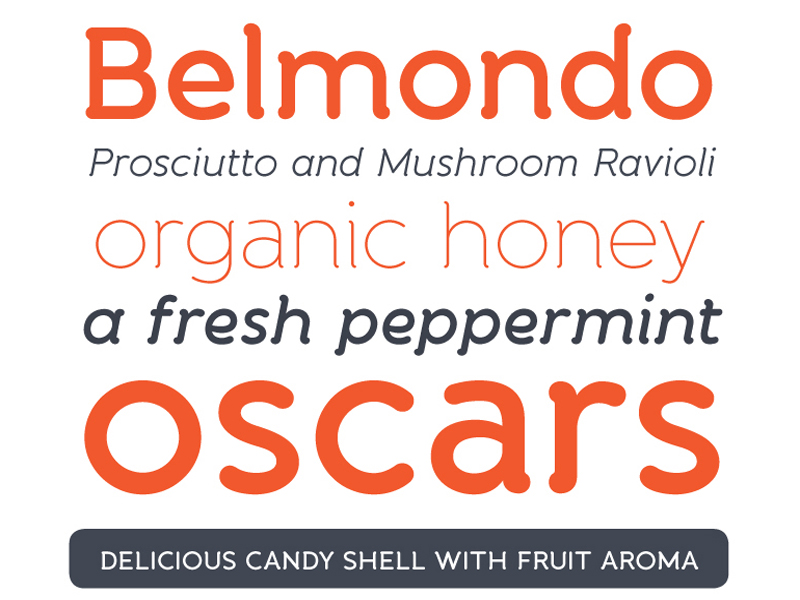
2. Banda

Banda

3. Fs Rondeau Light

Fs Rondeu Light

4. Bat Country

5. Piron

PIRON

6. Rock & Roll

Rock and Roll

7. Amperisk

Amperisk

8. Typedface

Typedface

9. Alcefun

alcefun

10. Code Pro

codepro

11. Dan Fonts

Dan Font

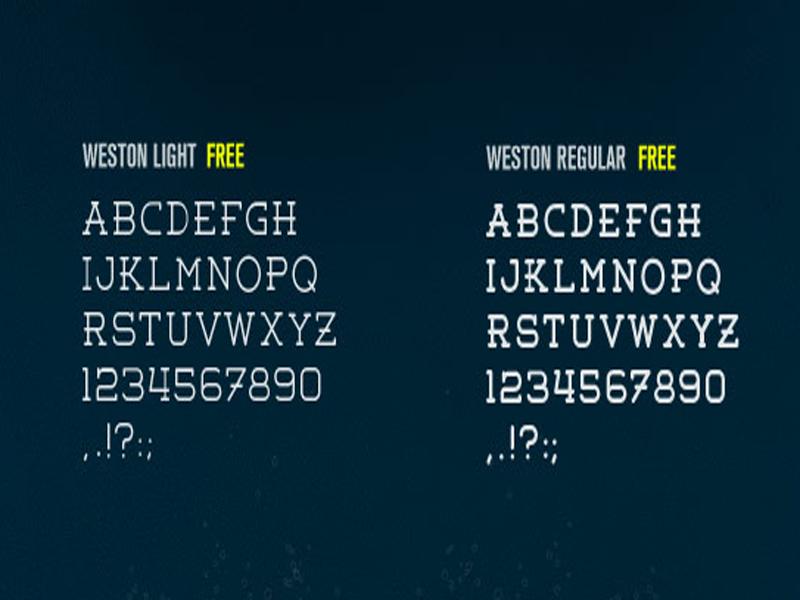
12. Weston

weston

13. File Font

File Font

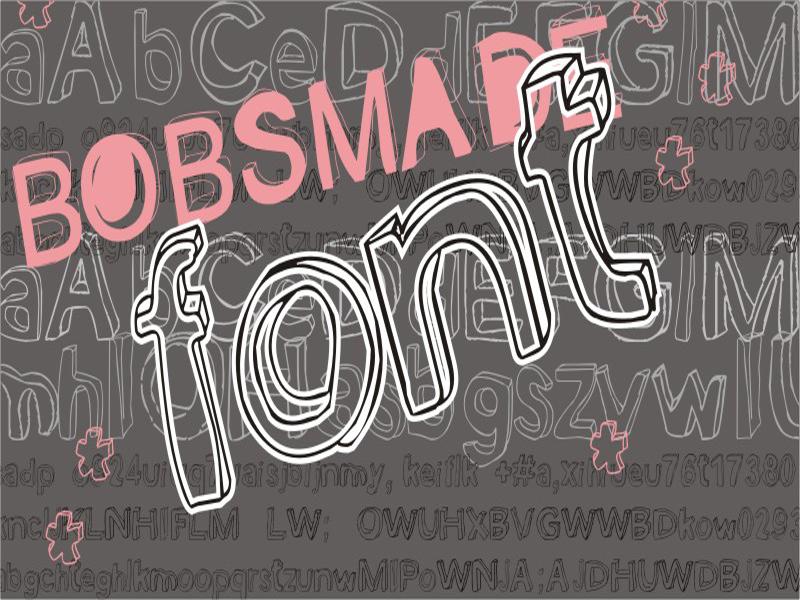
14. BobsMade

Bobsmade

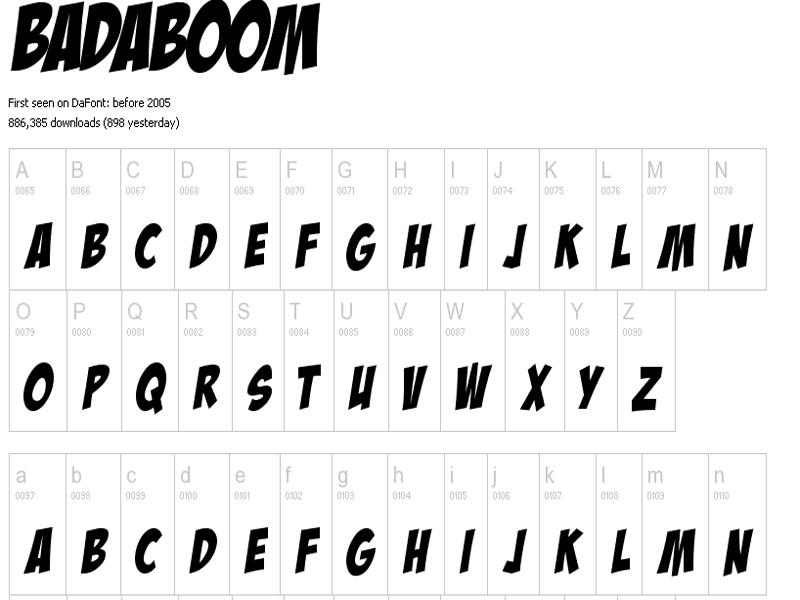
15. Badboom

Badboom

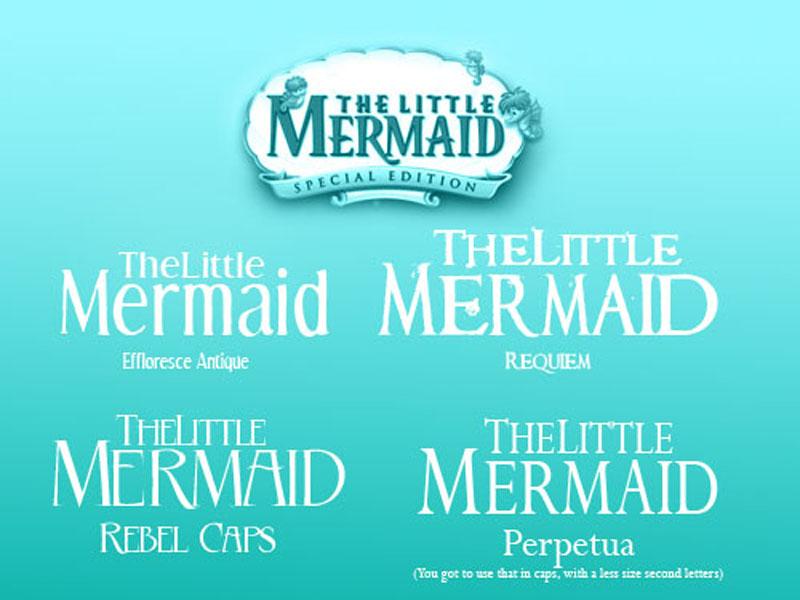
16. Little Mermaid

Little Mermaid

17. LogoFontik

Logofontik

18. Cony Free Font

Cony Free Font

19. Fummel

fummel

20. Dodge

dodge

21. Sketchtik

Sketchetik

nice web tools English Definitions and Dictionary dutch definition and Dictionary , Nederlands definitie finnish definition and Dictionary, hollantilainen sanakirja French definition and Dictionary, le dictionnaire Français arabic definition and Dictionary, قاموس اللغة العربية hindi definition and Dictionary, शब्दकोश, हिन्दी शब्दकोश bengali definition and Dictionary, বাংলা অভিধান portuguese definition and Dictionary, dicionário de Português urdu definition and Dictionary، اردو لغت russian definition and Dictionary, русский словарь spanish definition and Dictionary, diccionario de español